Download & install
On your TV in two minutes.
Orbit installs straight from this site with the free Downloader app. No app store account needed.
Orbit for Fire TV & Android TV
One app for Fire TV, Android TV and Google TV. It updates itself when a new version is out.
9797120
or the address orbit-iptv.com/get
Step by step
Pick your TV.
-
1
Install Downloader
On the Fire TV home screen, open Find, search for Downloader and install it. It's free.
Pick the one by AFTVnews, with the orange icon.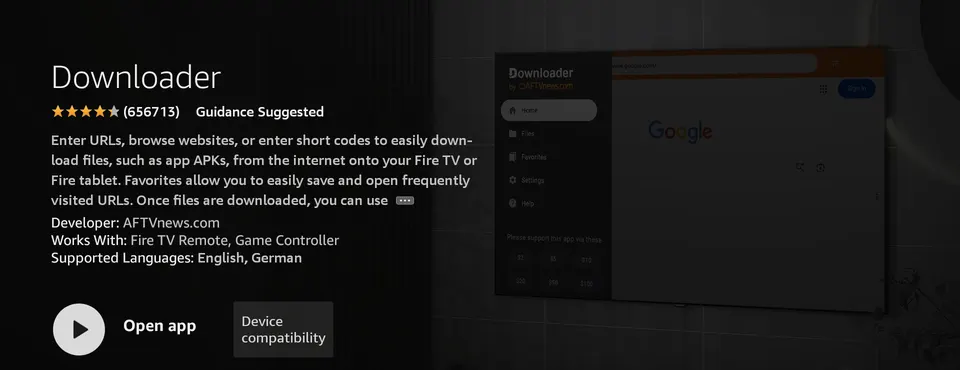
-
2
Let Downloader install apps
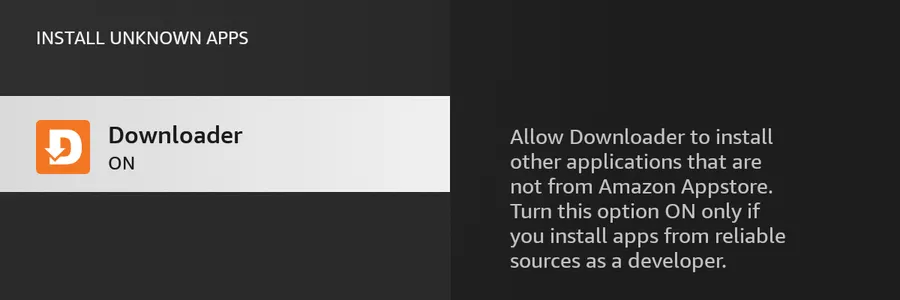
Settings›My Fire TV›Developer options›Install unknown apps›Downloader: On No Developer options? Go to Settings › My Fire TV › About and press OK on your device's name seven times.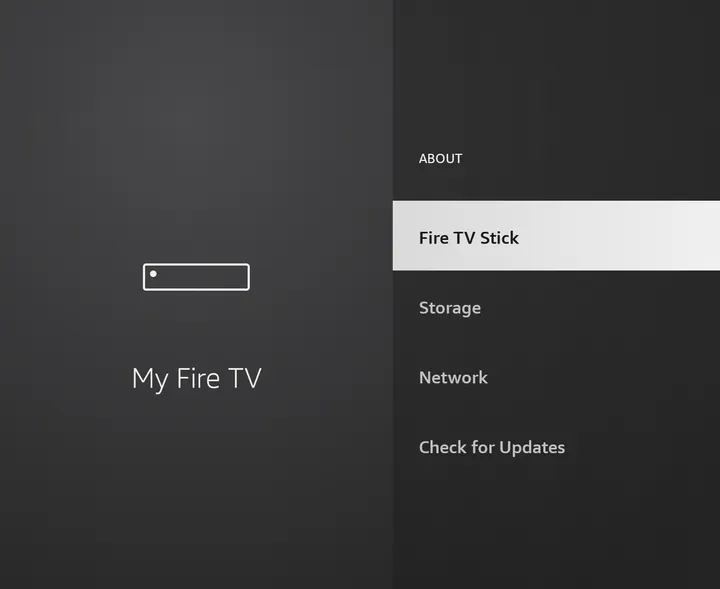
-
3
Download Orbit
Open Downloader, type the code
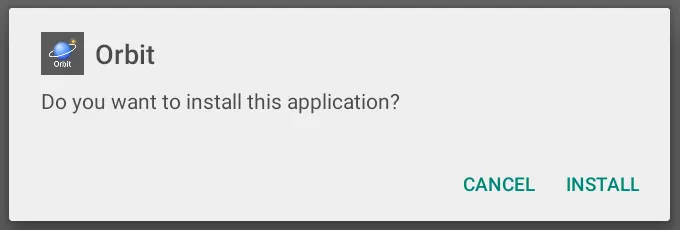
If a cookie notice pops up in Downloader, choose any option and the download carries on.9797120(ororbit-iptv.com/get) and press Go. When the download finishes, choose Install, then Open.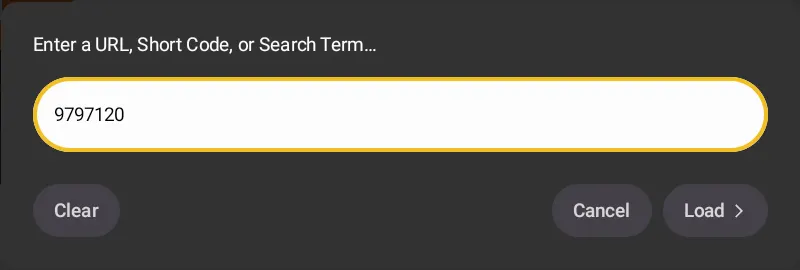
-
4
Sign in and add your provider from your phone
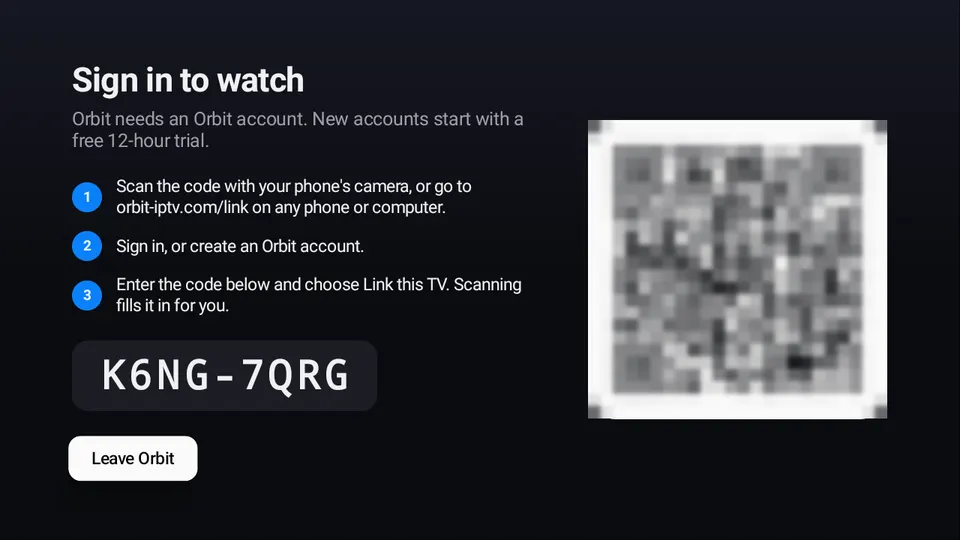
Orbit shows a QR code. Scan it with your phone, sign in or create your account, then type your playlist address or Xtream Codes login on the same phone. Your channels appear on the TV, already tidied.
-
1
Install Downloader
Open the Google Play Store on your TV, search for Downloader and install it. It's free.
Pick the one by AFTVnews, with the orange icon.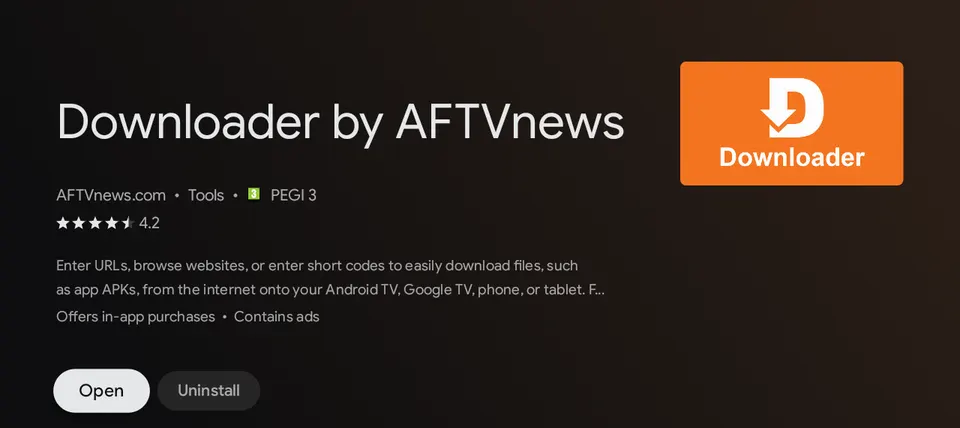
-
2
Allow apps from Downloader
Settings›Apps›Security & restrictions›Unknown sources›Downloader: On Names vary a little between TV makers. If Android asks when you install, choose Settings and allow it there.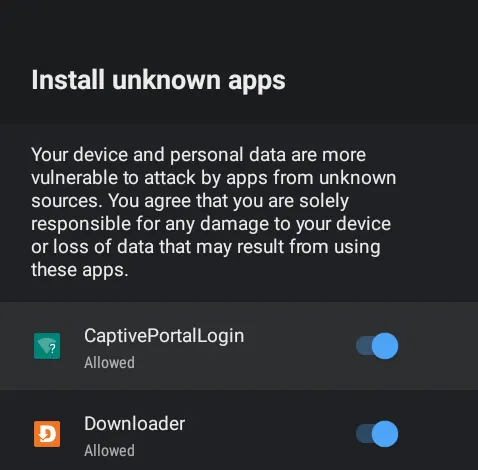
-
3
Download Orbit
Open Downloader, type the code
If a cookie notice pops up in Downloader, choose any option and the download carries on.9797120(ororbit-iptv.com/get) and press Go. Choose Install, then Open. -
4
Sign in and add your provider from your phone
Scan the QR code Orbit shows, sign in or create your account, then type your playlist address or Xtream Codes login on the same phone.
Good to know
Before you start.
Which devices?
Fire TV Sticks, Cubes and Fire TV smart TVs on Fire OS 6 or later, and Android TV or Google TV devices on Android 6 or later. Fire TVs running Vega OS can't run Android apps.
Updates
Orbit checks for new versions every few hours and offers them on screen. Every download is checked before it installs.
Moving to a new TV
Settings › Backup saves your providers, profiles and settings to your phone. On the new TV, choose Restore a backup.
Stuck? The FAQ covers the common snags, or get in touch.